
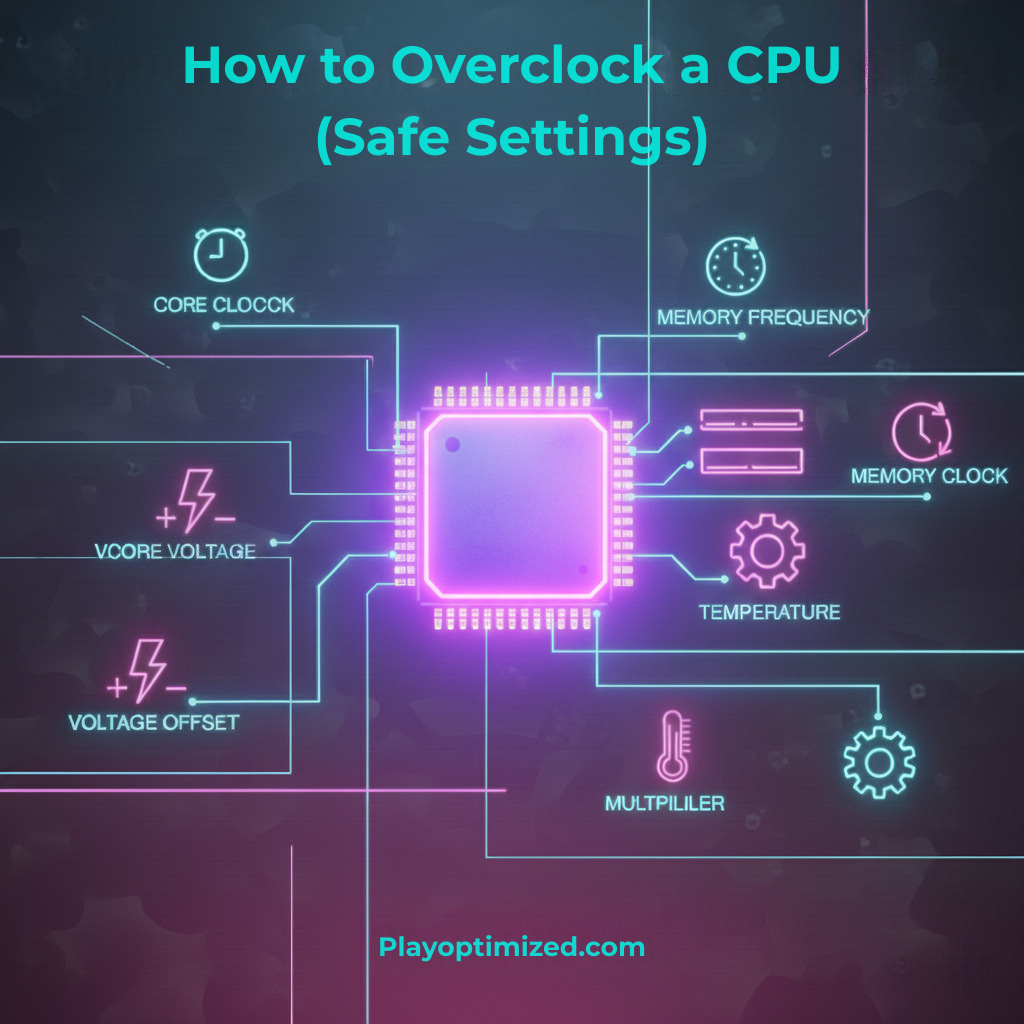
Learning how to overclock a CPU safely is one of the best ways to gain extra performance without upgrading your hardware. CPU overclocking can improve gaming frame rates, speed up productivity tasks, and extend the useful life of your system. However, incorrect settings can lead to instability, overheating, or crashes.
This guide explains CPU overclocking in a clear and safe way, covering preparation, BIOS settings, stress testing, temperature limits, and common mistakes to avoid.
What Is CPU Overclocking and Is It Safe?
CPU overclocking means running your processor at a higher clock speed than its factory specification. This is achieved by adjusting settings such as:
- CPU multiplier
- Core voltage (Vcore)
- Power and temperature limits
The goal is to increase performance while keeping the system stable and cool.
Is CPU Overclocking Safe?
When done correctly, CPU overclocking is generally safe, especially on modern processors.
Modern CPUs include:
- Thermal protection
- Automatic throttling
- Voltage and power limits
However, unsafe overclocking can cause:
- System instability
- Excessive heat
- Reduced CPU lifespan
That’s why following safe settings and monitoring temperatures is critical.
What You Need Before Overclocking a CPU
Before you start, make sure you have:
- An unlocked CPU (Intel “K” or AMD Ryzen)
- A quality motherboard with good VRMs
- Adequate CPU cooling (air or liquid)
- A reliable power supply
- Monitoring and stress-testing software
Stock coolers are usually not ideal for overclocking.
Best Tools for CPU Overclocking and Monitoring
BIOS / UEFI
Most CPU overclocking is done directly in the BIOS for maximum stability.
CPU-Z
Used to verify clock speeds and voltage in real time.
HWMonitor or HWiNFO
Used to monitor temperatures, voltages, and power draw.
Stress Testing Tools
Stress tests ensure your overclock is stable under load.
Step-by-Step: How to Overclock a CPU Safely
Step 1: Establish a Performance Baseline
Before overclocking:
- Run a stress test or benchmark
- Record temperatures and performance
- Note idle and load temperatures
This helps you measure improvements and spot issues later.
Step 2: Enter BIOS and Set a Manual Multiplier
- Restart your PC
- Enter BIOS (usually DEL or F2)
- Set CPU multiplier manually
Increase the multiplier gradually (e.g., +1 step at a time).
Step 3: Keep Voltage Conservative
For beginners:
- Start with auto voltage or a safe manual value
- Avoid aggressive voltage increases
General safe voltage guidelines (approximate):
- Intel: ≤ 1.35V
- AMD Ryzen: ≤ 1.30–1.35V
Lower voltage means lower heat and longer CPU lifespan.
Step 4: Save and Boot into Windows
- Save BIOS settings
- Boot into Windows
- Check CPU clock speeds using CPU-Z
If the system boots normally, continue testing.
Step 5: Stress Test for Stability
Run a stress test for:
- 10–15 minutes initially
- Monitor temperatures closely
If stable, you can increase the multiplier slightly and repeat.
Step 6: Monitor Temperatures Carefully
Safe CPU temperature ranges:
- Idle: 30–45°C
- Load: 60–80°C
- Maximum safe limit: ~85–90°C
If temperatures exceed safe limits, reduce the overclock or improve cooling.
Fine-Tuning for Stability
If instability occurs:
- Lower the CPU multiplier
- Slightly increase voltage (small increments only)
- Improve cooling or airflow
Stability is more important than higher clock speeds.
Should You Overclock Using Software?
Some manufacturers offer software overclocking tools.
Pros:
- Easier for beginners
- No BIOS access needed
Cons:
- Less stable than BIOS overclocking
- Resets after crashes
For long-term stability, BIOS overclocking is recommended.
Common Signs of an Unstable CPU Overclock
Watch for:
- Blue screens
- Freezing or reboots
- Application crashes
- Sudden performance drops
If any appear, reduce settings immediately.
When You Should NOT Overclock Your CPU
Avoid CPU overclocking if:
- Your cooling is inadequate
- Your system is already unstable
- You rely on maximum system reliability
- Your PC runs near thermal limits
Not every system benefits from overclocking.
Performance Gains You Can Expect
Typical CPU overclocking gains:
- 5–15% performance increase
- Faster multitasking
- Slightly higher gaming FPS (CPU-limited games)
Results vary depending on CPU model and cooling quality.
Resetting CPU Overclock Settings
If something goes wrong:
- Enter BIOS
- Load default settings
- Save and restart
Modern motherboards are designed to recover safely.
Common CPU Overclocking Myths
❌ Overclocking instantly damages CPUs
❌ More voltage always equals more performance
❌ All CPUs overclock the same
❌ Stock cooling is enough for high overclocks
Smart overclocking is controlled and cautious.
Final Thoughts
Learning how to overclock a CPU safely can unlock additional performance without spending money on upgrades. By using gradual adjustments, conservative voltage, and proper monitoring, you can enjoy a faster system while maintaining stability and hardware longevity.
Overclock responsibly, prioritize cooling, and always test thoroughly.