
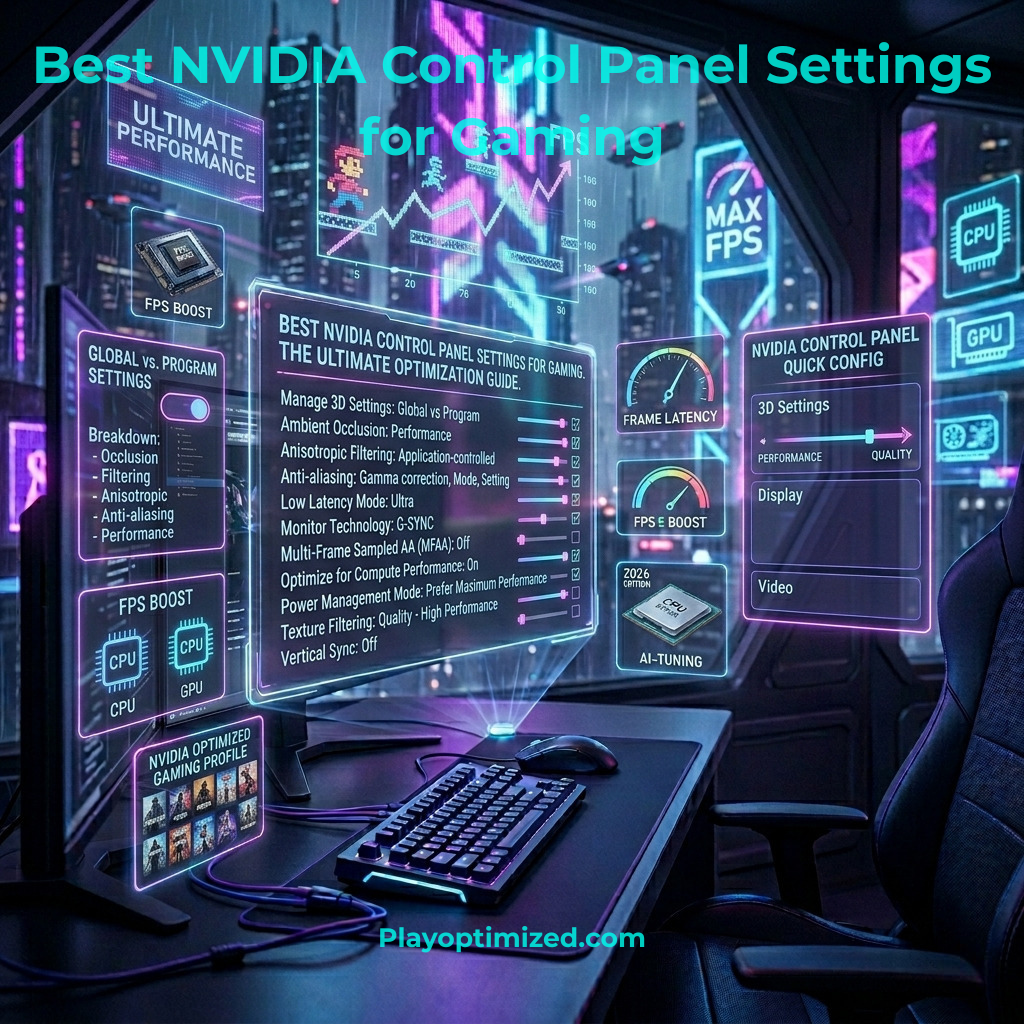
Why NVIDIA Control Panel Settings Still Matter in 2026
The best NVIDIA Control Panel settings can make a bigger difference to your gaming experience than most people realize — even after a hardware upgrade. It’s not the most exciting tool, but a few well-placed changes in here can shave real milliseconds off your input lag, smooth out your frame rate, and get noticeably more out of your GPU without spending anything.
This guide is fully updated for April 2026, covering RTX 50 series cards, DLSS 4.5 with Dynamic Multi Frame Generation, and the latest Windows 11 GPU features. Whether you just picked up an RTX 5080 or you’re still on an older card, everything here applies to you. Let’s go through it setting by setting.
1. Pre-Optimization Checklist: Do This Before Anything Else
Don’t skip this part. These three steps take maybe 20 minutes combined and will save you hours of head-scratching later.
- Clean Driver Installation with DDU — Old driver files are sneaky. They sit around causing stutters, random crashes, and settings that refuse to save — and you’d never guess they were the cause. The fix is simple: grab Display Driver Uninstaller (DDU), boot into Safe Mode, wipe everything clean, then install the latest driver fresh from NVIDIA’s website. It takes 15 minutes and eliminates a whole category of potential problems.
- Windows 11 Settings Worth Checking First — Two features are worth enabling before you open the Control Panel. Game Mode (Settings → Gaming → Game Mode) tells Windows to prioritize resources for your active game. Hardware-Accelerated GPU Scheduling or HAGS (Settings → System → Display → Graphics → Change default graphics settings) reduces latency on modern hardware — enable it, test it, and keep it if things feel better. For a broader look at squeezing more out of Windows, How to Optimize Windows 10/11 for Gaming and Speed covers the rest.
- Set Up a Performance Monitor Before You Start Tweaking — You need a baseline. Without one, you’re just guessing whether your changes helped. Install MSI Afterburner with RivaTuner Statistics Server, or pull up NVIDIA’s built-in overlay with Alt+R, and track FPS, temperatures, and GPU/CPU load. Jot down your numbers before you change anything.
2. Best NVIDIA Control Panel Settings: Global Configuration
These settings apply to every game and app unless you override them for a specific program. Get this foundation right and everything benefits from it automatically.
- Image Scaling → Off — Keep this off globally. If your game supports DLSS, that’s a far better option. Enabling image scaling across the board can create visual weirdness in games that already have their own upscaling built in.
- Ambient Occlusion → Off (or Performance) — Ambient occlusion adds nice depth to scenes and makes shadows feel more grounded, but it eats GPU resources. Turn it off if you want maximum performance. If you mostly play slower, more cinematic games and want a bit more visual depth, “Performance” is a reasonable middle ground.
- Anisotropic Filtering → Application-Controlled (or 16x) — On modern cards, forcing 16x anisotropic filtering costs almost nothing and makes angled textures look noticeably sharper. Honestly, just set it to 16x globally and never think about it again.
- Antialiasing Settings → All Off — FXAA blurs more than it smooths, Gamma Correction can quietly throw off color accuracy, and modern games handle antialiasing far better in-engine than anything you can force through the driver. Set Mode and Setting to Application-Controlled, and turn Transparency AA off. Leave all of this to the game itself.
- Background Application Max Frame Rate → On, 30 FPS — When a game is open but you’re not in it, this stops it from quietly hammering your GPU at full load. It caps background frame rate at 30 FPS, which keeps temperatures and power draw in check without you having to think about it.
- CUDA – GPUs → Select Your Primary Card — If you have a dedicated GPU alongside an integrated one, confirm that all CUDA work is going to your main card. It’s usually set correctly by default, but worth a quick check.
- DSR Factors → Off — DSR renders games at a higher resolution than your monitor, then scales down. The image quality improvement is real, but the FPS hit is severe. Leave it off unless you genuinely have performance headroom to spare.
- Low Latency Mode → Ultra — This is one of the most impactful NVIDIA Control Panel settings for gaming you can change. Ultra mode cuts down the frame rendering queue, directly reducing the delay between your mouse or keyboard input and what actually appears on screen. In competitive games especially, you’ll feel the difference.
- Max Frame Rate → 3 FPS Below Your Monitor’s Refresh Rate — Running a 144Hz monitor? Cap at 141. Got 240Hz? Cap at 237. This is a core part of the G-SYNC setup — keeping your frame rate just inside the adaptive sync range eliminates tearing and keeps latency low.
- Monitor Technology → G-SYNC (If Supported) — G-SYNC keeps your monitor’s refresh rate locked to your GPU’s output, which gets rid of screen tearing without the latency penalty of traditional V-Sync. If your monitor doesn’t support it, select Fixed Refresh.
- Multi-Frame Sampled AA (MFAA) → Off — This was a useful option a few years ago, but it’s been outclassed by modern in-game antialiasing. Leave it off.
- OpenGL GDI Compatibility → Prefer Performance — Mostly matters for older OpenGL applications. For gaming it’s largely irrelevant, but Performance mode is the sensible default.
- Power Management Mode → Prefer Maximum Performance — This forces your GPU to run at full clock speeds all the time instead of throttling to save power. Essential for stable, consistent frame rates. Your card will run hotter and use more power as a result — make sure your cooling can handle it. If temps are a concern, How to Lower CPU and GPU Temperatures has you covered.
- Preferred Refresh Rate → Highest Available — Make sure your monitor is actually running at its top refresh rate. Windows updates have a habit of quietly resetting this after driver installs, so it’s worth confirming.
- Texture Filtering → High Performance — Set Quality to High Performance, Negative LOD Bias to Allow, and Trilinear Optimization to On. These three together reduce how hard your GPU works on texture rendering. The visual difference while things are in motion is minimal, and the performance gain is real.
- Threaded Optimization → Auto — This lets the driver figure out the best way to spread rendering work across your CPU cores. Auto is the right answer in almost every situation — don’t override it manually.
- Triple Buffering → Off — Triple buffering only really helps when using traditional V-Sync without G-SYNC. With a G-SYNC and FPS cap setup, it’s just adding latency for no benefit. Turn it off.
- Vertical Sync → On (Only if Using G-SYNC + FPS Cap) — This one trips people up. If you have G-SYNC enabled and your frame rate capped 3 below your monitor’s refresh rate, turn V-Sync on in the NVIDIA Control Panel too. G-SYNC on, V-Sync on in the driver, FPS capped just below max refresh — all three parts need to be active together. This is the gold standard for smooth, tear-free, low-latency gaming.
The G-SYNC Trifecta: G-SYNC enabled + V-Sync on (NVIDIA Control Panel) + FPS capped 3 below max refresh rate. Don’t skip any part of it.
3. Advanced NVIDIA Control Panel Settings: DLSS 4.5 and RTX 50 Series
If you’re on an RTX 50 series card, the 2026 driver stack adds some genuinely impressive features on top of the standard Control Panel settings.
- DLSS 4.5 – Dynamic Multi Frame Generation — DLSS 4.5 has moved well beyond simple upscaling. Dynamic Multi Frame Generation uses AI to generate additional frames between the ones your GPU actually renders, pushing your perceived frame rate significantly higher without a proportional increase in input latency. Enable DLSS inside the game’s graphics settings, then open the NVIDIA App or Control Panel to manage quality modes. “Quality” is the best starting point for most games. Drop to “Balanced” or “Performance” if you need more frames and can accept a slightly softer image.
- AI Upscaling Overrides — The 2026 drivers let you force AI upscaling at the driver level, even for games that don’t natively support DLSS. How well it works depends entirely on the game — some titles handle it beautifully, others look a bit off. Treat it as an experimental per-game option rather than something to enable across the board.
- RTX Video Super Resolution — Not a gaming feature, but a genuinely useful one. RTX VSR uses AI to upscale and sharpen video playing in your browser or media player. Find it under “Adjust video image settings” in the Control Panel. If you regularly watch streams, replays, or lower-resolution YouTube content, it makes a noticeable difference to image clarity.
4. Program Settings: Per-Game NVIDIA Control Panel Customization
Global settings cover the vast majority of situations. Per-game profiles are for those specific cases where a title has different needs or where you want different trade-offs.
- Competitive games (Valorant, CS2, Warzone) — The priority here is pure performance and low latency — nothing else. Low Latency Mode: Ultra, Power Management: Maximum Performance, and V-Sync off unless you’re using G-SYNC. Every frame and every millisecond counts.
- AAA single-player games (Cyberpunk 2077, Alan Wake 2, etc.) — You have more room to breathe here. Trading a few FPS for better visuals is a worthwhile deal in games where you’re taking in the scenery. Experiment with Ambient Occlusion, try DLSS Quality or Balanced mode if the game supports it, and enjoy the visual difference.
- When to override global settings — Only create a per-game profile when there’s a specific reason — a game conflicts with a global setting, or you want genuinely different priorities for that one title. Don’t build profiles just for the sake of it. The simpler your setup, the easier it is to troubleshoot if something goes wrong.
5. Display and Video Settings
- Resolution and Refresh Rate — Head to “Change resolution” and confirm you’re at your monitor’s native resolution and maximum refresh rate. Both Windows updates and driver reinstalls are known to quietly reset these — always double-check after any major software change.
- Digital Vibrance — Under “Adjust desktop color settings,” try bumping Digital Vibrance to around 70–80%. It cranks up color saturation, which makes everything look more vivid. In competitive shooters it can actually help with enemy visibility — colors separate more clearly. Outside of that it’s pure preference, so try it and see if you like it.
- G-SYNC Setup — Under “Set up G-SYNC,” enable it for both full-screen and windowed mode. Then run the built-in test pattern to confirm G-SYNC is actually working — it’s surprisingly easy to have everything set correctly in the driver but have it blocked by a wrong cable or a monitor setting. The test pattern takes 30 seconds and tells you immediately.
6. Troubleshooting: Quick Fixes for Common Issues
- Screen flickering after changes — Check your cable first — DisplayPort is more reliable than HDMI at high refresh rates. Verify your refresh rate is set correctly, and check if your monitor has a firmware update available.
- Input lag spikes — Look at what’s running in the background and how much CPU and GPU it’s consuming. Update your chipset drivers, and close anything non-essential. Discord’s hardware acceleration is a surprisingly common culprit. If stuttering is the specific issue,How to Fix Stuttering & Micro-Lag in PC Games goes into real depth on that.
- Settings not saving — Right-click and run the NVIDIA Control Panel as Administrator. Driver folder permissions can get corrupted after a clean install, which stops changes from writing correctly.
Final Thoughts: Getting the Most From Your NVIDIA Control Panel Settings
The best NVIDIA Control Panel settings don’t get nearly the attention they deserve. Hardware upgrades make for better headlines, but the tweaks covered in this guide — especially Low Latency Mode, Power Management, and the G-SYNC trifecta — deliver real, measurable improvements you can actually feel during gameplay.
Start with the global settings, benchmark your most-played games using Benchmark Your PC Properly then build per-game profiles only where you have a genuine reason to. Don’t tweak endlessly for the sake of it.
In 2026, with DLSS 4.5 and RTX 50 series hardware pushing PC gaming into new territory, your NVIDIA Control Panel settings need to keep pace with your hardware. Spend 30 minutes going through this guide once, and you’ll likely notice the difference the next time you sit down to play.

The PlayOptimized Team is made up of PC enthusiasts passionate about helping everyday users get the most out of their hardware. From budget builds to advanced optimization, every guide is written with one goal in mind: practical advice that actually works, without the technical overwhelm.