
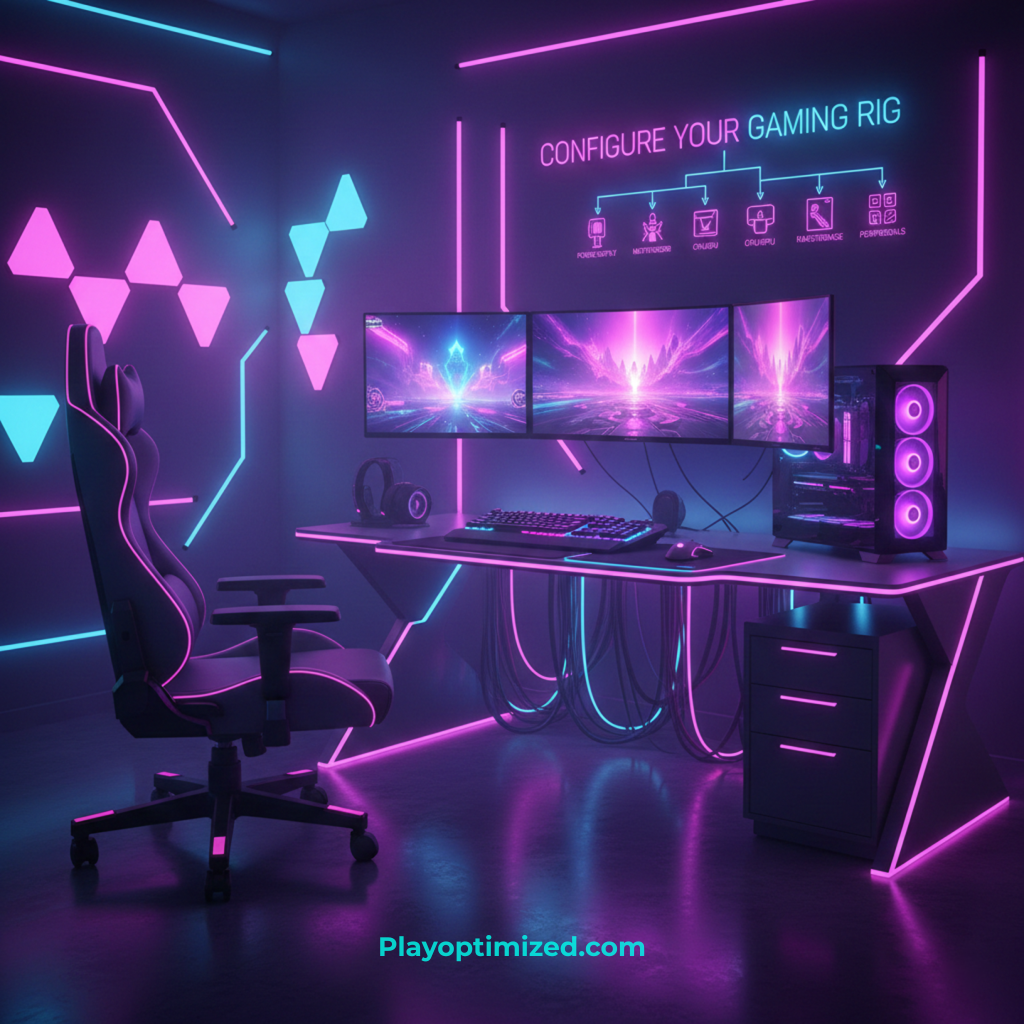
Learning how to configure a gaming setup correctly is about more than just placing a PC on a desk. A well-configured setup improves performance, comfort, reaction time, and long-term health. Whether you play competitively or casually, the right layout, peripherals, and system configuration can significantly enhance your gaming experience.
This guide walks you through every essential step, from desk placement and ergonomics to display settings, audio, and cable management.
Choosing the Right Desk and Chair
Desk Size and Stability
Your desk should provide enough space for:
- Monitor(s)
- Keyboard and mouse
- Mouse movement area
- Optional accessories (mic, controller, speakers)
A stable desk prevents monitor shake and improves precision during gameplay.
Ergonomic Gaming Chair
A proper chair supports:
- Lower back (lumbar support)
- Natural spine alignment
- Adjustable armrests
Comfort directly affects focus and reaction time during long sessions.
Proper PC and Console Placement
PC Placement
- Keep the PC off carpeted floors
- Ensure unobstructed airflow
- Leave space behind exhaust fans
Good airflow prevents overheating and performance throttling.
Console Placement
- Place consoles in open areas
- Avoid enclosed cabinets
- Ensure proper ventilation
Monitor Setup and Display Configuration
Monitor Positioning
- Top of the screen at eye level
- Distance: arm’s length from your face
- Center the monitor with your keyboard
This reduces neck strain and eye fatigue.
Resolution and Refresh Rate
- Use native monitor resolution
- Enable the highest refresh rate in Windows
- Match in-game settings to your monitor
High refresh rates improve smoothness and responsiveness.
Multi-Monitor Setup
Position secondary monitors slightly angled inward to reduce head movement and strain.
Keyboard and Mouse Configuration
Mouse Sensitivity and DPI
- Use a consistent DPI (800–1600 for most gamers)
- Disable mouse acceleration in Windows
- Fine-tune in-game sensitivity
Consistency improves muscle memory and accuracy.
Keyboard Layout
- Angle the keyboard slightly for comfort
- Use wrist support if needed
- Customize keybinds for efficiency
Mechanical keyboards offer better response and durability.
Audio Setup for Immersion and Awareness
Headsets vs Speakers
Gaming headsets provide:
- Directional audio
- Noise isolation
- Built-in microphones
Speakers offer immersion but lack positional accuracy.
Sound Settings
- Enable spatial audio if supported
- Balance game and voice chat levels
- Adjust equalizer settings for clarity
Good audio helps you react faster to in-game cues.
Lighting and Visual Comfort
Ambient Lighting
- Use soft background lighting
- Avoid harsh contrast with the monitor
- LED bias lighting reduces eye strain
RGB Setup
RGB lighting is optional but can:
- Improve aesthetics
- Reduce eye fatigue
- Match your gaming theme
Function should always come before style.
Cable Management and Organization
Messy cables reduce airflow and create distractions.
Tips:
- Use cable sleeves or clips
- Route cables behind the desk
- Separate power and data cables
A clean setup improves both airflow and focus.
Software and System Configuration
Windows Settings
- Enable Game Mode
- Set power plan to High Performance
- Disable unnecessary startup apps
Peripheral Software
Install official software to:
- Customize RGB
- Adjust DPI profiles
- Create macros
Keep software updated but avoid bloat.
Network and Internet Optimization
Wired vs Wireless
A wired Ethernet connection offers:
- Lower latency
- More stability
- Consistent speeds
If using Wi-Fi, ensure strong signal strength.
Router Placement
- Place routers in open areas
- Avoid interference from walls or metal objects
Stable internet improves online gaming reliability.
Maintaining Your Gaming Setup
Regular maintenance keeps your setup performing well.
- Clean dust every few months
- Check cable connections
- Update drivers and firmware
- Re-adjust ergonomics as needed
Small adjustments prevent long-term issues.
Common Gaming Setup Mistakes
❌ Poor monitor height
❌ Ignoring ergonomics
❌ Overloading USB ports
❌ Blocking airflow
❌ Prioritizing RGB over comfort
Avoiding these mistakes improves both comfort and performance.
Final Thoughts
Knowing how to configure a gaming setup properly transforms how you play. A balanced setup improves comfort, reduces fatigue, enhances performance, and creates an immersive environment. Focus on ergonomics, airflow, display settings, and clean organization before chasing aesthetics.
A well-configured setup isn’t just about looks—it’s about playing better and longer.
A strong gaming experience starts with the right hardware foundation. See our complete guide on How to Build a Budget Gaming PC in 2026 (Complete Guide) before choosing individual upgrades.