
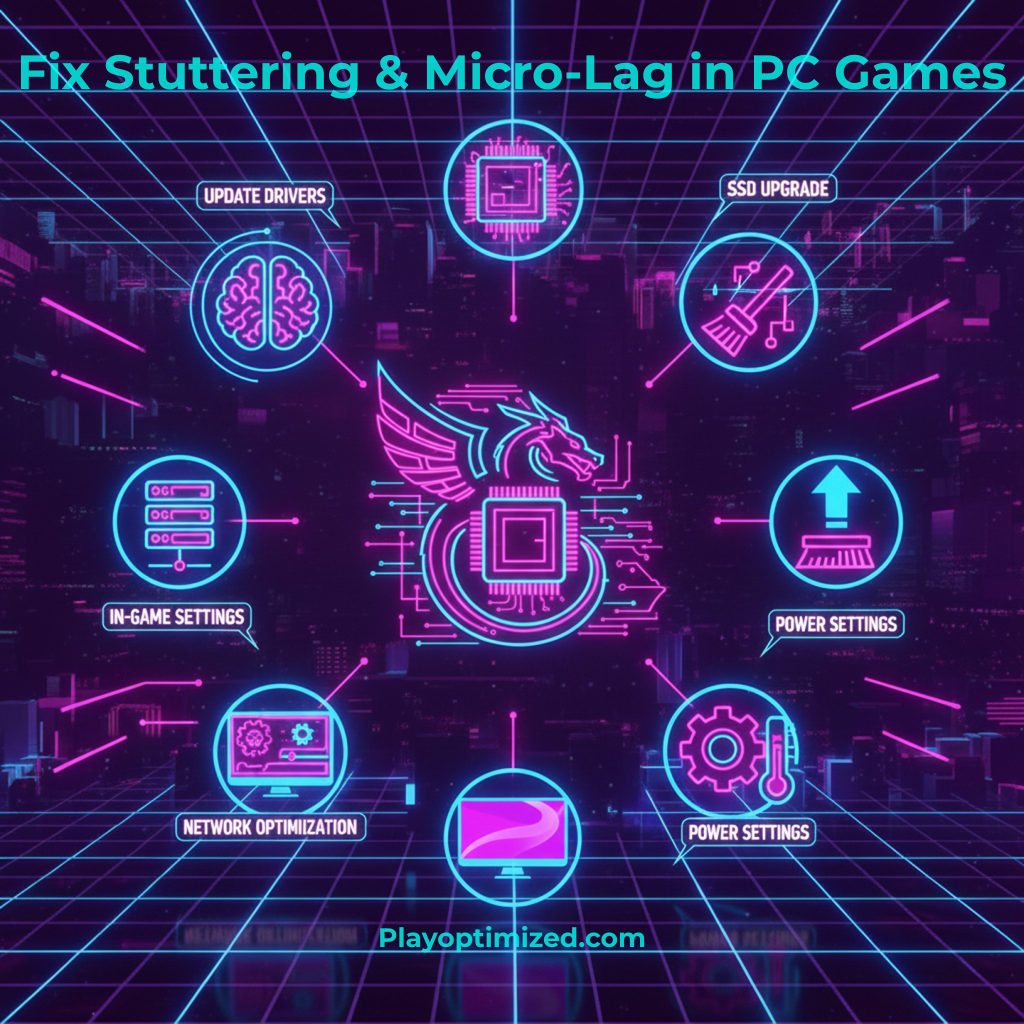
PC game stuttering fix methods are essential for achieving smooth, consistent gameplay without micro-lag or sudden frame drops. Even high-end PCs can suffer from uneven frame pacing, input delay, and random stutters caused by software conflicts, driver issues, thermal throttling, or background processes. Understanding what causes stuttering in PC games is the first step toward eliminating it permanently.
In this guide, you’ll learn how to fix stuttering and micro-lag in PC games using safe, proven methods that improve smoothness, responsiveness, and overall performance.
What Causes PC Game Stuttering Fix Issues?
Before applying fixes, it’s important to understand the root causes.
Common reasons include:
- Inconsistent frame times
- CPU or GPU bottlenecks
- Background processes consuming resources
- Poor driver or game optimization
- Thermal throttling
- Storage-related loading delays
Stuttering is rarely caused by a single issue — it’s usually a combination of factors.
How to Fix Stuttering in PC Games by Checking Frame Times
FPS alone doesn’t tell the full story. Frame time consistency is what determines smooth gameplay.
What to Look For
- Stable frame times (flat line)
- No sudden spikes or drops
- Consistent GPU usage
Use tools like:
- MSI Afterburner + RivaTuner
- CapFrameX
- NVIDIA FrameView
If frame times spike, stuttering will occur even at high FPS.
Update GPU Drivers to Fix Stuttering in PC Games
Outdated or buggy drivers are a major cause of micro-lag.
Best Practices
- Use the latest stable driver, not always the newest beta
- Perform a clean driver installation
- Avoid installing unnecessary driver features
Sometimes rolling back one driver version can completely fix stuttering issues.
Optimize In-Game Settings for Smooth Gameplay
Certain settings cause uneven performance even on strong hardware.
Settings That Often Cause Stuttering
- Ray tracing
- Ultra shadows
- Motion blur
- Background loading options
- Dynamic resolution scaling
Lowering just one problematic setting can dramatically reduce micro-lag.
Fix CPU Bottlenecks to Reduce Game Stuttering
A CPU bottleneck can cause frame delivery delays.
How to Identify CPU Bottlenecks
- GPU usage below 90%
- CPU usage spikes on one or two cores
- Stuttering during combat or AI-heavy scenes
Solutions
- Close background apps
- Enable XMP/DOCP for RAM
- Increase graphics settings slightly to shift load to GPU
Balanced system usage = smoother gameplay.
Reduce Stuttering by Optimizing Windows for Gaming
Windows settings have a direct impact on frame pacing.
Recommended Windows Tweaks
- Enable Game Mode
- Disable unnecessary startup apps
- Set power plan to High Performance
- Turn off background recording features
A clean Windows environment helps fix stuttering in PC games.
Fix Stuttering in PC Games by Managing Background Apps
Background tasks can interrupt frame delivery.
What to Disable
- Browser tabs
- RGB software
- Overlays you don’t use
- Cloud sync tools during gaming
Check Task Manager while gaming to spot sudden CPU or disk spikes.
Storage Speed and Game Stuttering
Slow storage can cause loading-related micro-lag.
Best Storage Practices
- Install games on SSD or NVMe drives
- Keep at least 20% free space
- Avoid running games from external HDDs
This is especially important for open-world and streaming-heavy games.
Lower CPU and GPU Temperatures to Prevent Stuttering
Thermal throttling causes inconsistent performance.
Warning Signs
- Sudden FPS drops after extended gameplay
- Rising temperatures over time
- Loud fans followed by performance dips
Ensure proper airflow, clean dust, and monitor temperatures regularly.
PC Game Stuttering Fix Using Frame Rate Caps
Uncapped FPS can cause uneven frame pacing.
Best Options
- In-game FPS limiter
- NVIDIA Control Panel frame cap
- AMD Chill
- G-Sync / FreeSync (with V-Sync configured correctly)
A stable FPS cap often fixes micro-lag instantly.
Fix Stuttering in PC Games by Updating Games and BIOS
Sometimes the issue isn’t your system.
What to Check
- Game patches and hotfixes
- BIOS updates for CPU compatibility
- Motherboard chipset drivers
Modern platforms rely heavily on firmware optimization.
Common Mistakes That Cause Micro-Lag
Avoid these issues:
- Mixing different RAM speeds
- Running games in borderless mode unnecessarily
- Using aggressive overclocking
- Ignoring background disk usage
- Installing too many monitoring tools at once
Small mistakes add up to noticeable stuttering.
Final Thoughts on Fixing Stuttering in PC Games
Learning how to fix stuttering in PC games is about improving consistency, not just raw performance. By optimizing drivers, Windows settings, thermals, and in-game options, you can eliminate micro-lag and enjoy smooth, responsive gameplay — even on mid-range systems.
Stuttering-free gaming comes from balance, not brute force.